Free Mac app · Apple Silicon · Version 2.0
Free WiFi Analyzer for Mac
A free native Swift WiFi analyzer for Apple Silicon. Graph channel congestion on 2.4, 5, and 6 GHz, scan every nearby network in list view, and map signal strength on a floor plan with the new heatmap survey so you can find dead zones and pick clearer channels.
WifiAnalyzer 2.0 · ~2.4 MB · macOS Apple Silicon
Graphs, list view & heatmap surveys
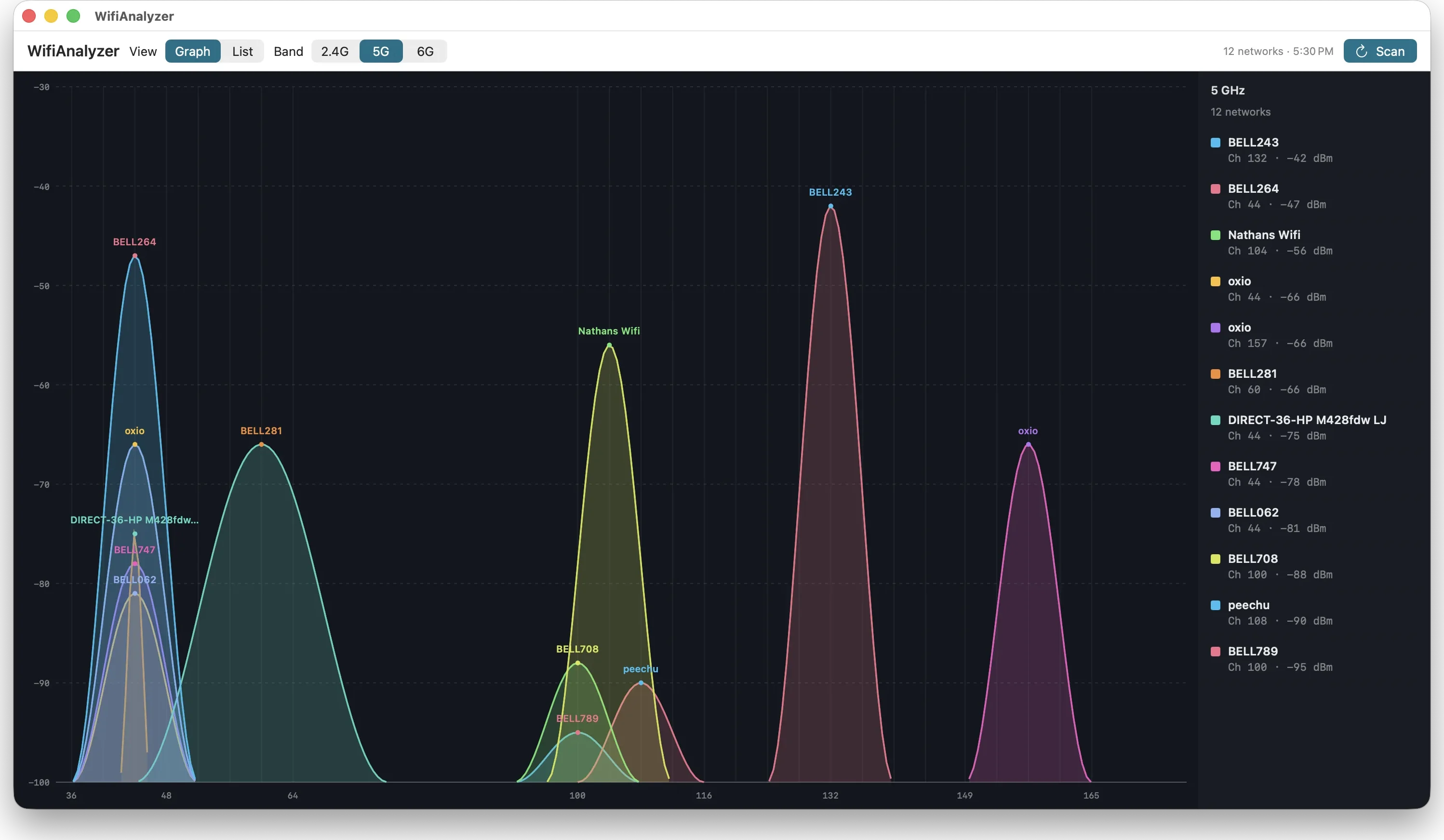
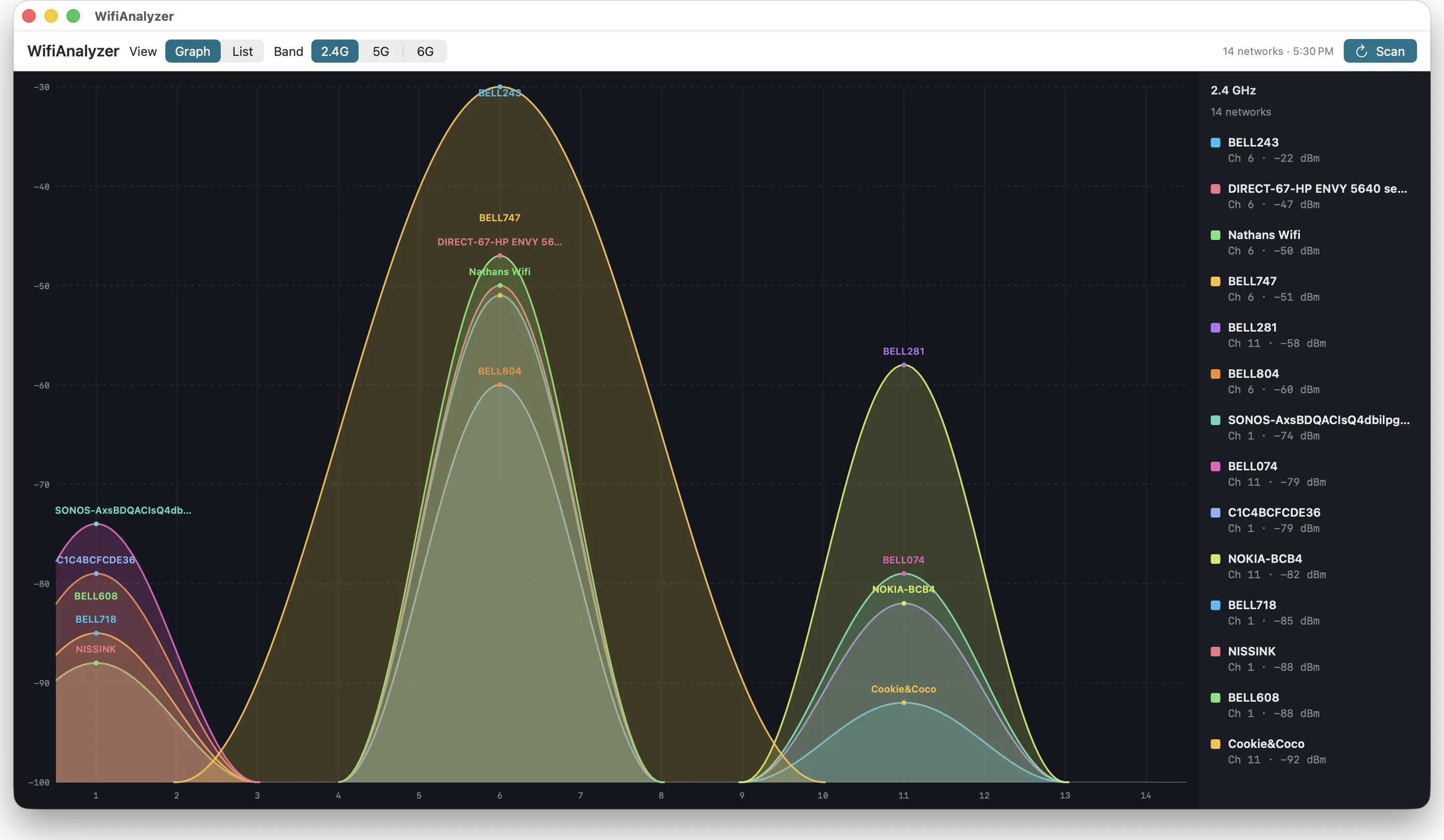
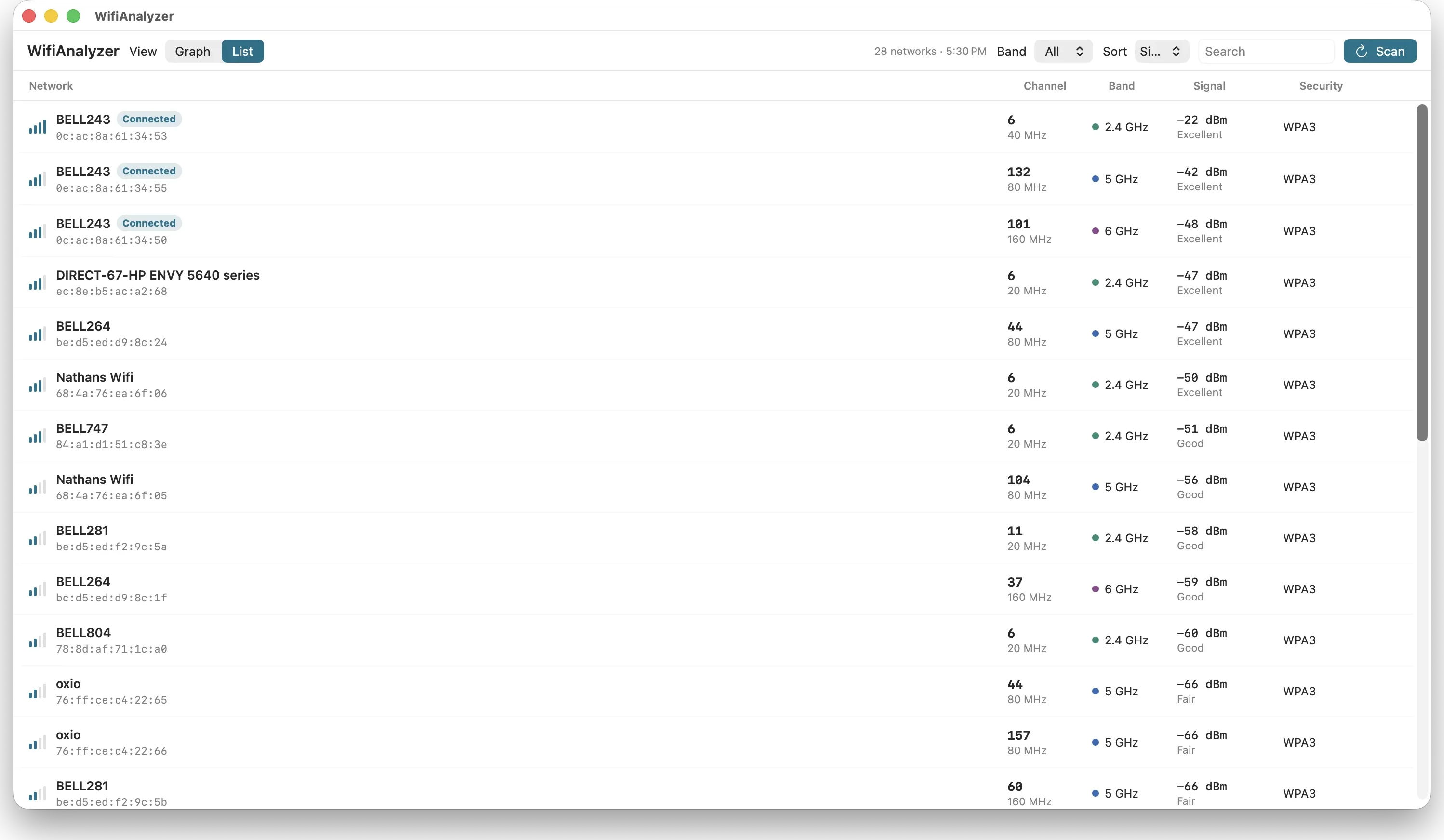
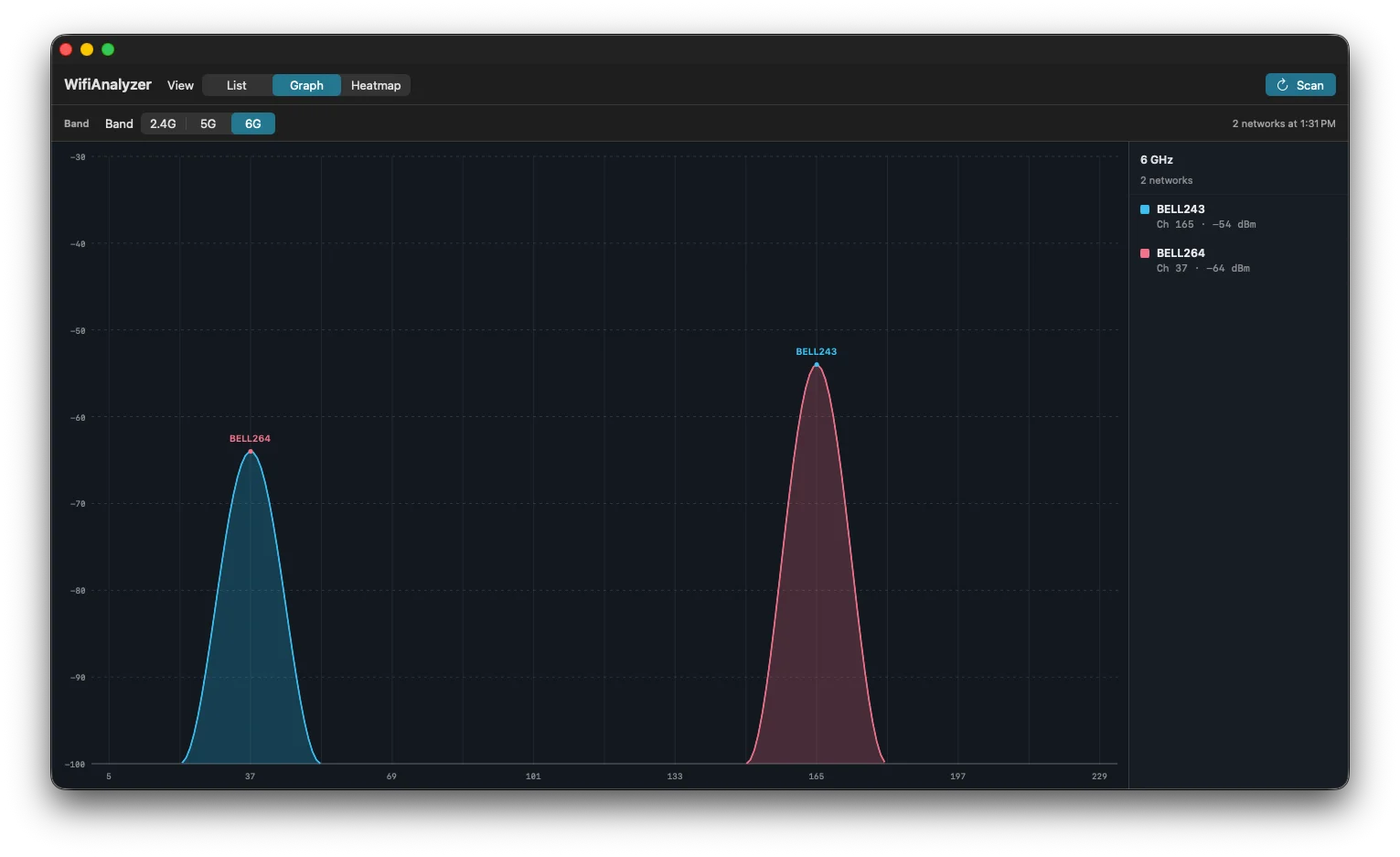
Graph congestion by band, list every nearby SSID, or use the new heatmap to import a floor plan and record signal as you move through your space.
Why use a WiFi analyzer on Mac?
Crowded channels cause slow speeds and dropouts. A dedicated Mac WiFi analyzer shows what your router settings alone cannot.
WiFi heatmap surveys
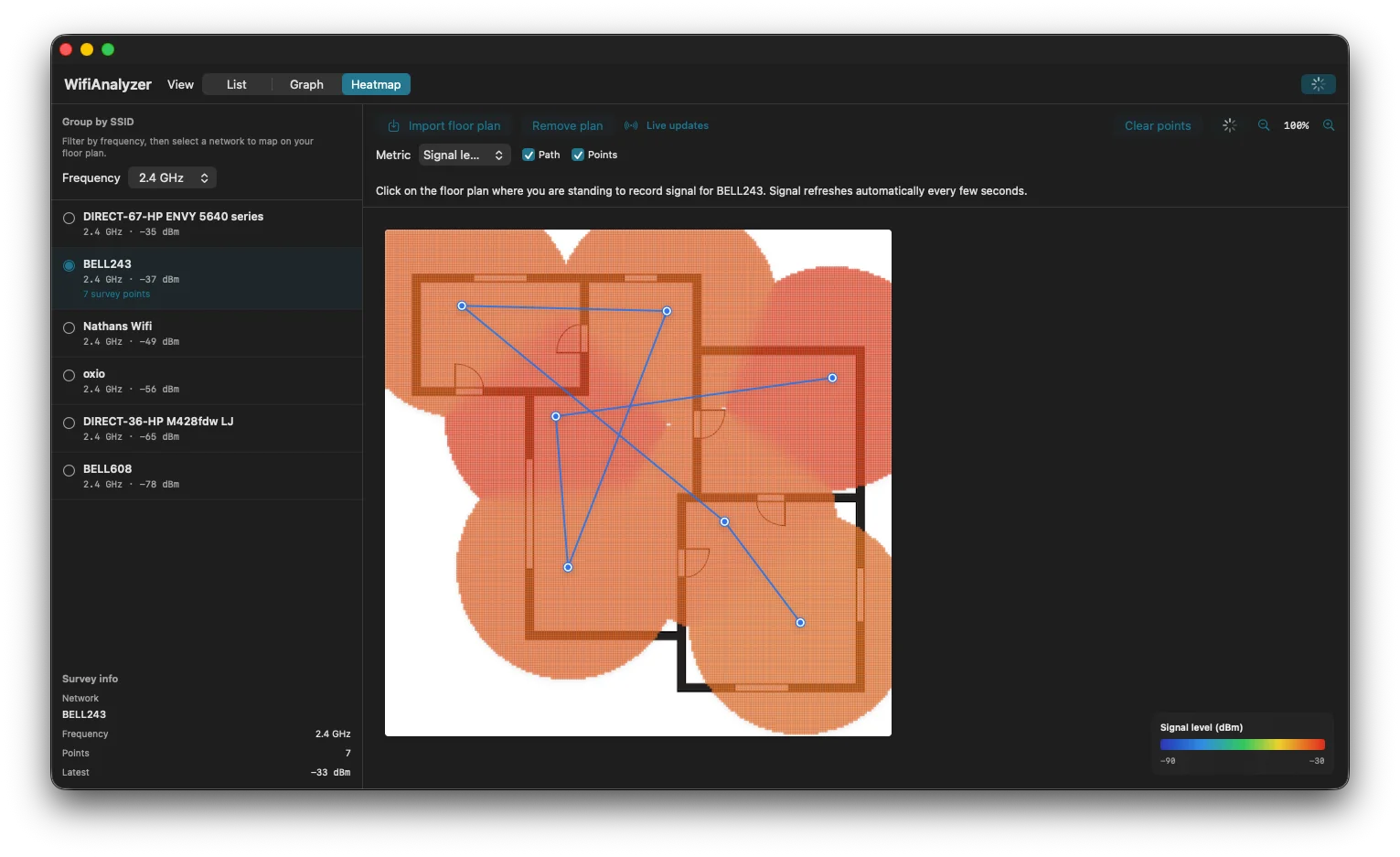
New in 2.0: import a floor plan, walk your space, and map signal strength with live survey points and a colour-coded heatmap.
See congestion clearly
Visualize how crowded nearby WiFi channels are so you can pick a cleaner channel for your network.
Overlapping networks
Identify neighbouring networks that compete on the same channels and drag down performance.
Built for Apple Silicon
Native Swift app for Apple Silicon Macs. Lightweight, fast, and designed for macOS.
WiFi analyzer for Mac (Apple Silicon)
Looking for a free WiFi analyzer for Mac that actually runs on Apple Silicon? NetworkBolt WiFi Analyzer is a native Swift app for M1, M2, M3, and M4 Macs. It scans nearby WiFi networks and shows channel congestion visually. There is no Intel compatibility layer and no subscription.
Unlike generic network utilities, this Mac WiFi congestion tool focuses on what matters for home and small-office wireless: overlapping SSIDs, channel width, signal strength in dBm, and which band (2.4 GHz, 5 GHz, or 6 GHz) each network uses.
WiFi heatmap with floor plan surveys
Version 2.0 adds a heatmap view for site surveys on Mac. Import your floor plan, select a network, and click where you are standing to log signal strength. Survey points connect into a path as you walk the space, and a colour-coded overlay shows strong and weak coverage at a glance.
Live updates refresh readings every few seconds, so you can watch signal change in real time. Switch between 2.4, 5, and 6 GHz, toggle path and point markers, and clear or redo surveys without leaving the app. It is a practical way to find dead zones, test access point placement, or show a client where WiFi actually reaches.
Mac WiFi congestion tool that shows overlapping channels
When many routers share the same channel, throughput drops. WifiAnalyzer graphs each network as a curve across channels so you can spot crowded spots at a glance, for example a busy channel 6 on 2.4 GHz or overlapping 80 MHz blocks on 5 GHz.
Use the list view as a WiFi channel scanner for Mac: sort by signal, filter by band, and check security (such as WPA3) before you change your access point settings.
How to pick a clearer WiFi channel on macOS
- Download and install WifiAnalyzer-2.0.dmg
- Open the app and run a scan of nearby networks
- Compare 2.4G, 5G, and 6G graph views for the least overlap
- Optional: open Heatmap, import a floor plan, and survey signal in each room
- Change your router to a quieter channel or reposition hardware, then scan again to confirm
Built in St. Catharines by NetworkBolt
NetworkBolt builds web, IT, and network tools from St. Catharines, Ontario. WiFi Analyzer is a free utility for Mac users who want a simple way to diagnose wireless congestion without cloud accounts or paid licenses. Need a custom Mac utility or network tooling for your business? Get in touch.
Also free from NetworkBolt: website audit.
WiFi analyzer for Mac FAQ
Common questions about downloading and using this free macOS WiFi analyzer.
- Is there a free WiFi analyzer for Mac?
- Yes. NetworkBolt WiFi Analyzer is a free WiFi analyzer for Mac with Apple Silicon. Download the DMG, install the app, and scan nearby networks to see channel congestion.
- Does this WiFi analyzer work on Apple Silicon?
- Yes. Version 2.0 is built natively in Swift for Apple Silicon Macs (M1, M2, M3, M4, and later). Intel Macs are not supported in this release.
- What is a Mac WiFi congestion tool used for?
- A Mac WiFi congestion tool shows how crowded nearby WiFi channels are. NetworkBolt WiFi Analyzer graphs overlapping networks on 2.4 GHz, 5 GHz, and 6 GHz so you can pick a clearer channel and improve wireless performance.
- Can I scan 2.4 GHz, 5 GHz, and 6 GHz WiFi on Mac?
- Yes. The graph view lets you switch between 2.4G, 5G, and 6G bands. The list view shows every nearby network with channel, band, signal strength, and security type.
- Does WiFi Analyzer include a heatmap or floor plan survey?
- Yes. Version 2.0 adds a heatmap view. Import a floor plan, select a network, and click where you are standing to record signal strength. Survey points plot your path and a colour-coded overlay shows coverage across the space, with live updates as you move.
- How do I install WiFi Analyzer on macOS?
- Download WifiAnalyzer-2.0.dmg, open the disk image, and move the app to Applications. On first launch, macOS Gatekeeper may ask you to allow the app under System Settings → Privacy & Security. Grant WiFi or Location access if prompted so scans can run.
Download the free Mac WiFi analyzer
Open the DMG, launch WiFi Analyzer, and review nearby networks, channel congestion, or run a floor plan heatmap survey. Built by NetworkBolt in St. Catharines.
- Apple Silicon only (M-series Macs)
- Graph, list, and heatmap views
- Native Swift application
- Free to download and use
WiFi Analyzer is free. If the app was helpful, you can support its development with a coffee on Ko-fi.
Buy me a coffeeSystem requirements
- Mac with Apple Silicon (M1 or newer)
- macOS with permission to access WiFi / Location as prompted
- Open the DMG and drag the app to Applications if prompted
Gatekeeper may ask you to allow the app on first launch. If needed, open System Settings → Privacy & Security and approve WiFi Analyzer.